Find chats and resources
Click Search in the sidebar, or press Command + K on a Mac or Ctrl + K on Windows. You can search your chats, meetings, Agents, Workflows, projects, Skills, files, and Cassidy help articles from one place. Use the tabs at the top when you want to narrow the results. Search only shows resources you can access. Draft Agents, Workflows, and Skills do not appear because they are not ready to use. Choosing a result takes you to the most useful next step. Agents start a chat, Workflows open in the Run view, Skills are added to a new chat, projects filter the Chats tab, and files open in a preview. You can also search for destinations such as Account Settings → Notifications.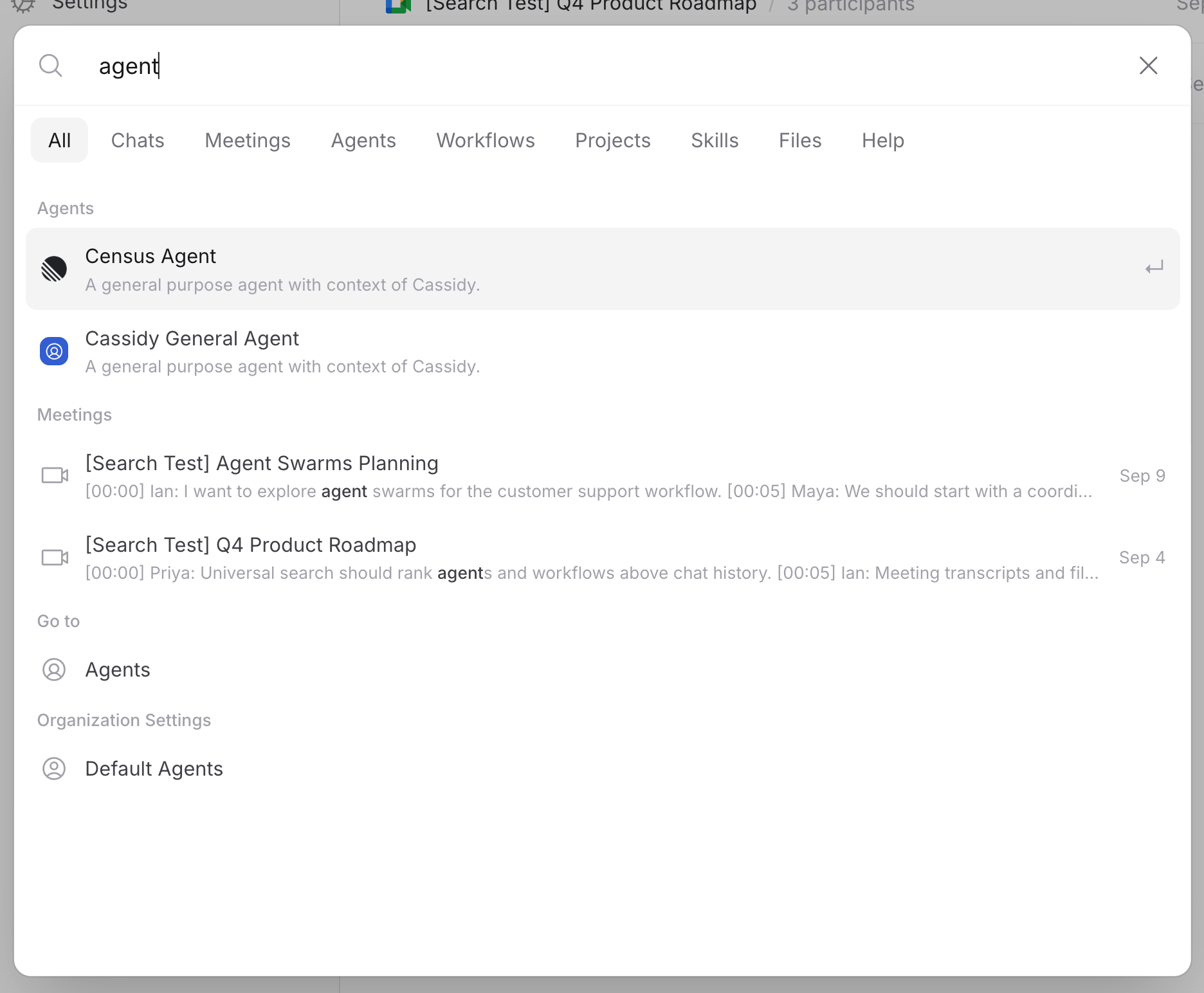
Select an Agent
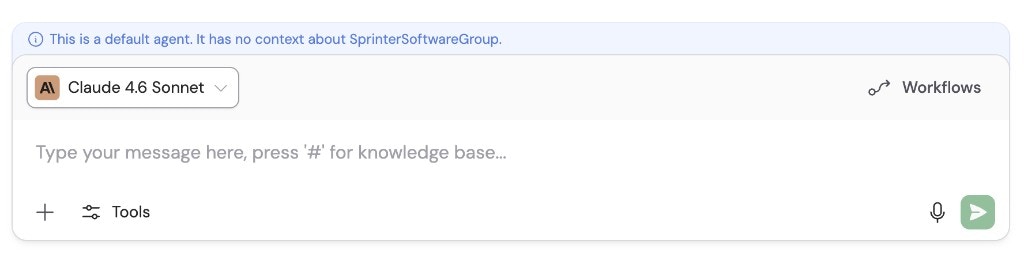
Every chat uses an Agent. You can switch between custom Agents, foundational models, and Cassidy’s pre-built Agents at any time.Open the Agent dropdown
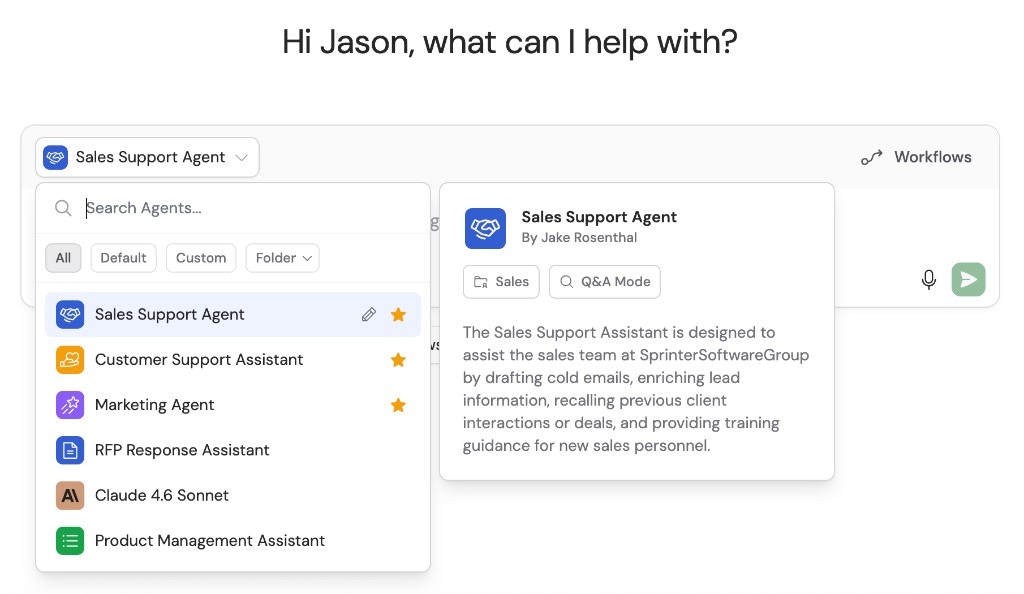
Browse and choose an Agent
- Custom Agents — built by your team, trained on your Knowledge Base with tailored instructions
- Default Agents — foundational models like GPT, Claude, Gemini, and Open Source models without your business context
- Pre-built Agents — Cassidy’s ready-made options like the Data Analyst and Cassidy Help Agent
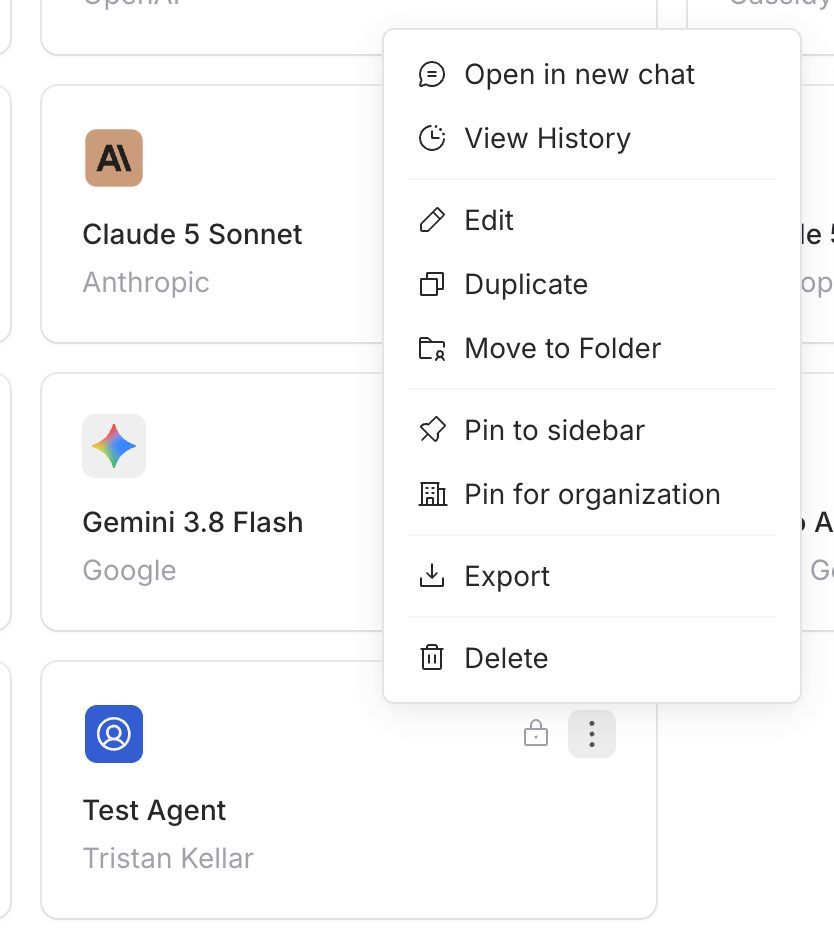
Pin an Agent
Switch mid-conversation
Personalize your chat
Tell Cassidy your name, role, and response preferences so every chat is tailored to you, no matter which Agent you use. Open Customize → Personalization from the sidebar or from the top-right corner of a new chat. See Personalize your chats for the full walkthrough and where your preferences apply. For organization-wide AI behavior rules that apply to every Agent and Workflow, see Global instructions. Agents can also remember useful context from your private chats and search your past chats when you refer back to earlier work. See Memory to learn how it works and how to manage it from Customize → Memory.Reference your Knowledge Base
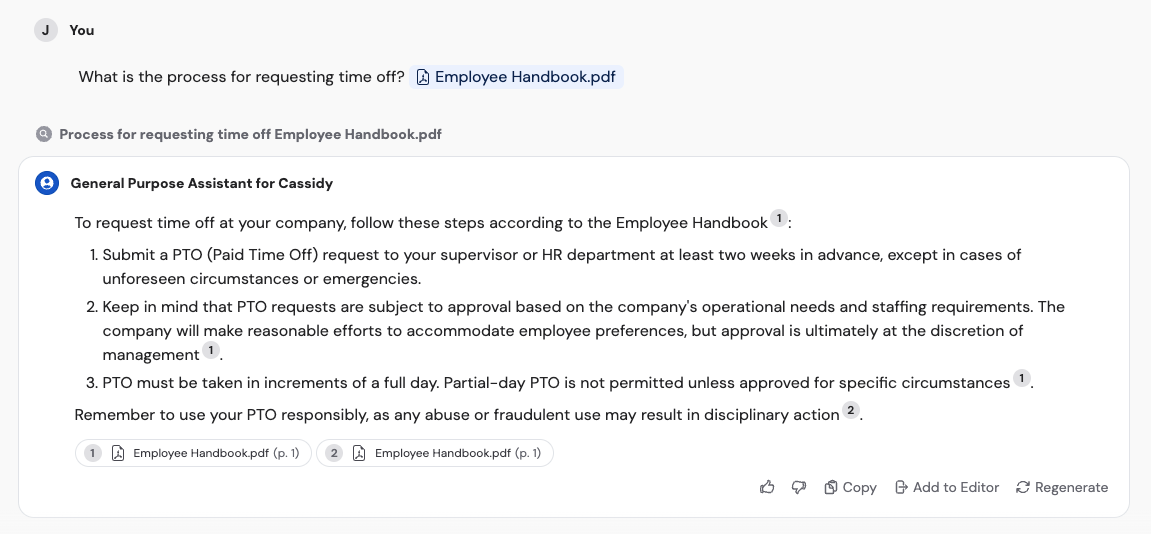
You can pull specific items from your Knowledge Base directly into a chat to ask targeted questions.Type the # key
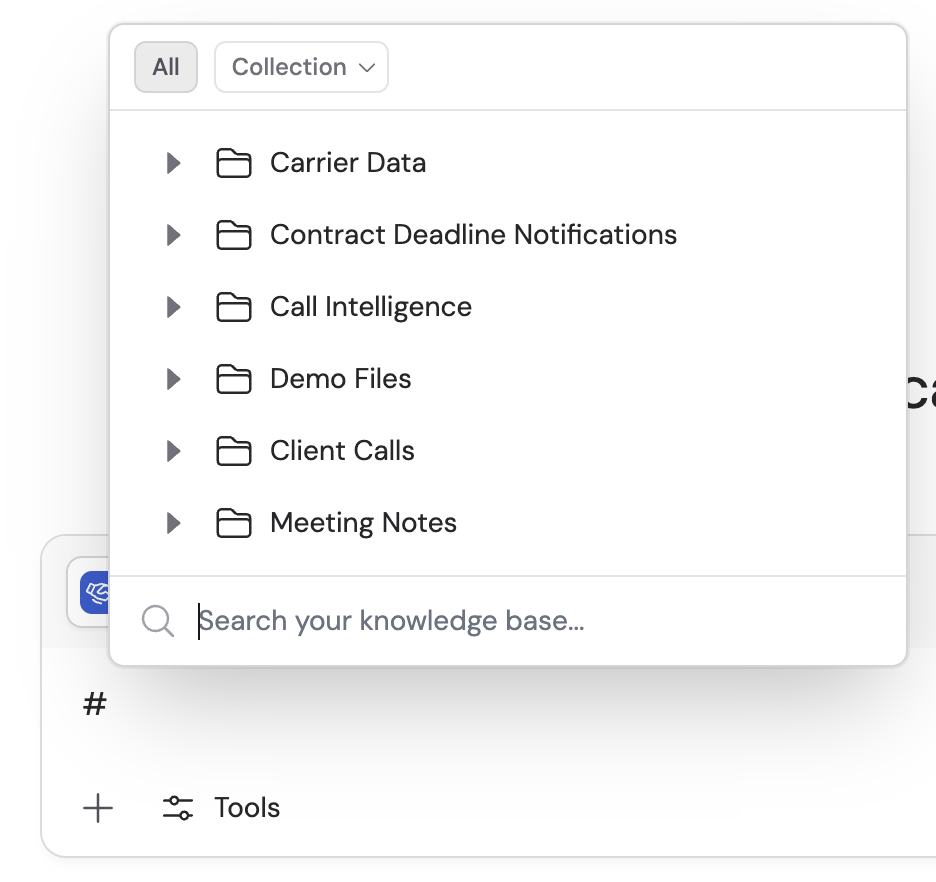
Search and select an item
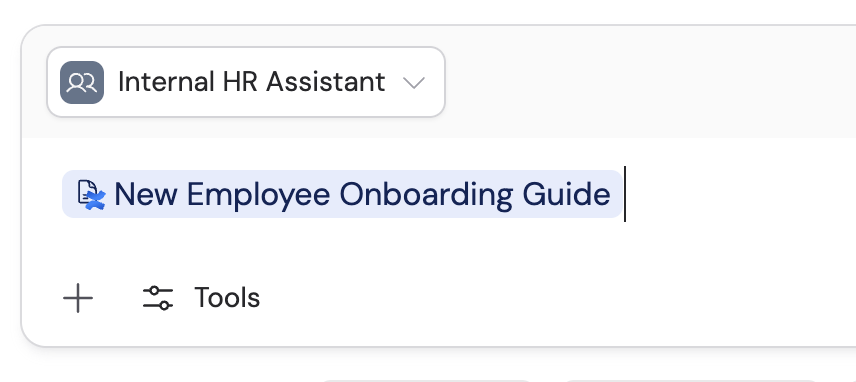
Ask your question
- “Can you summarize the main points of this employee handbook?”
- “How many vacation days am I entitled to according to this policy?”
- “What is the process for requesting time off?”
Upload files and media
Share files, images, videos, and audio directly in chat to ask questions about their content. These uploads are temporary — they are not saved to your Knowledge Base.Click the + button
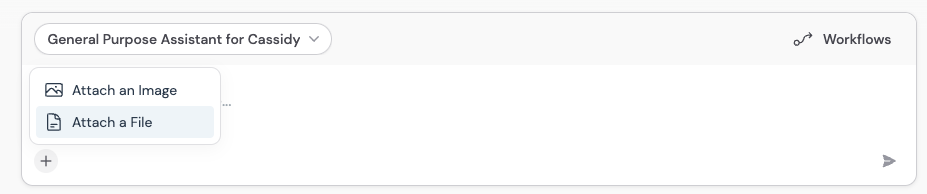
Choose your upload type
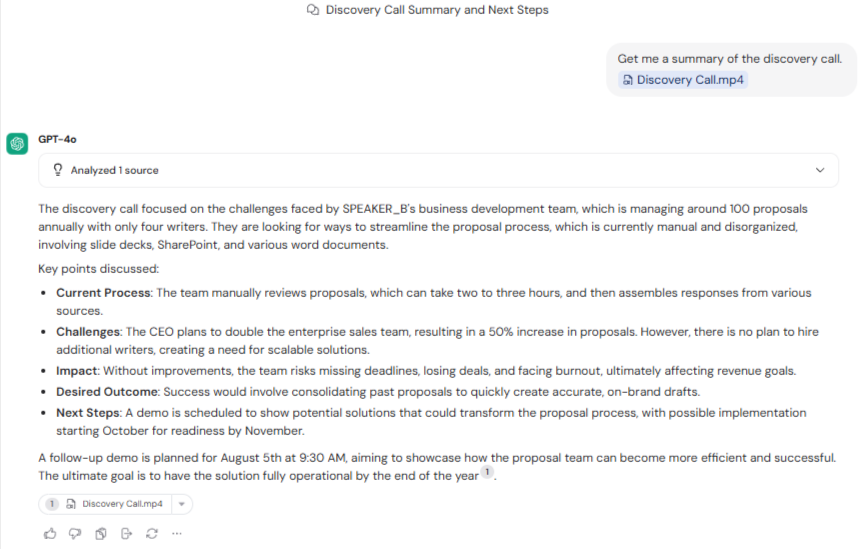
Ask questions about the content
- “Summarize the key findings in this report”
- “What text is visible in this screenshot?”
- “Extract the data from this chart”
Use the tools picker
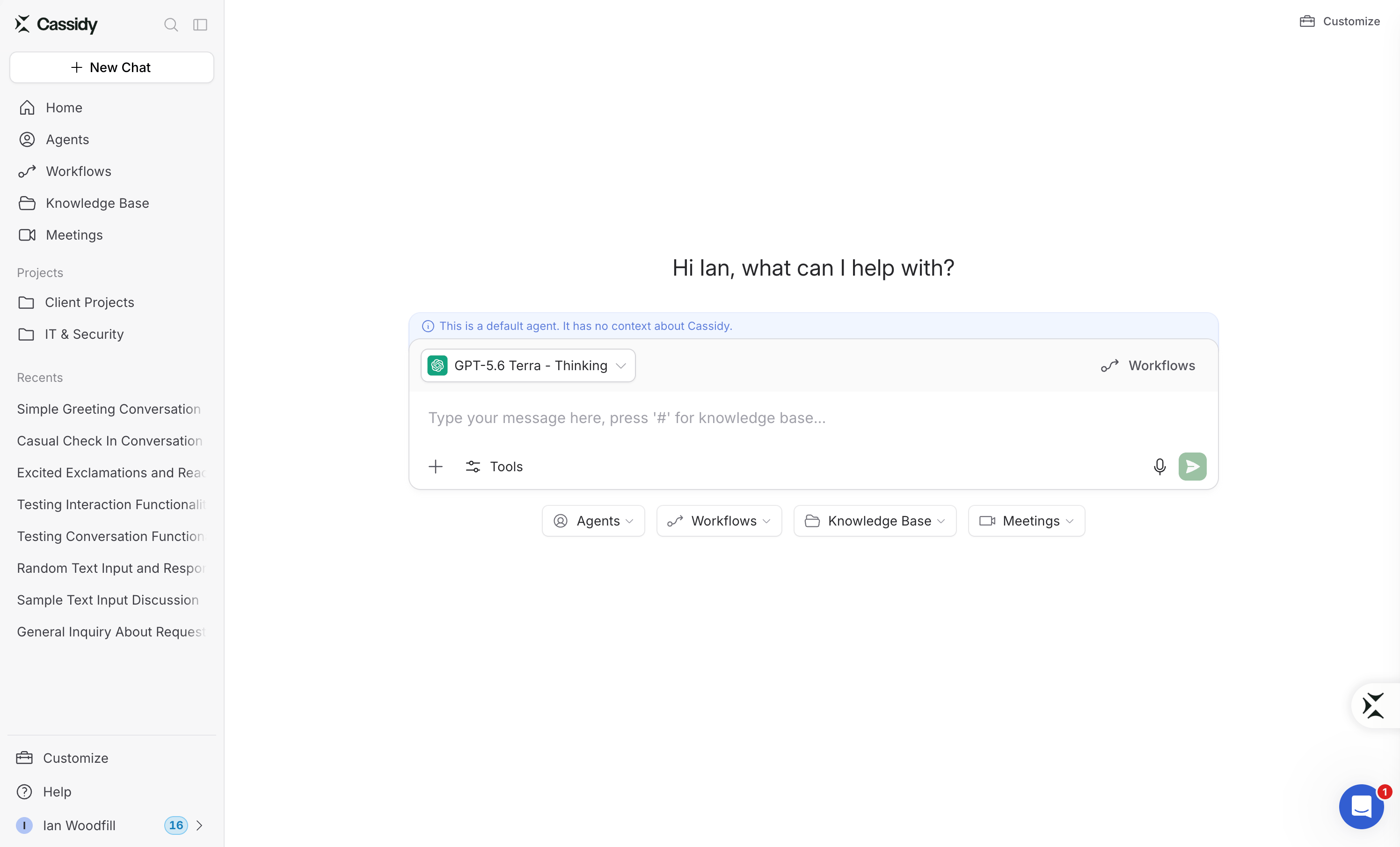
Click Tools at the bottom of the text box to see everything available in the current chat. From here you can turn capabilities such as Web Search, Image Generation, Artifacts, and Browser Use on or off for the chat.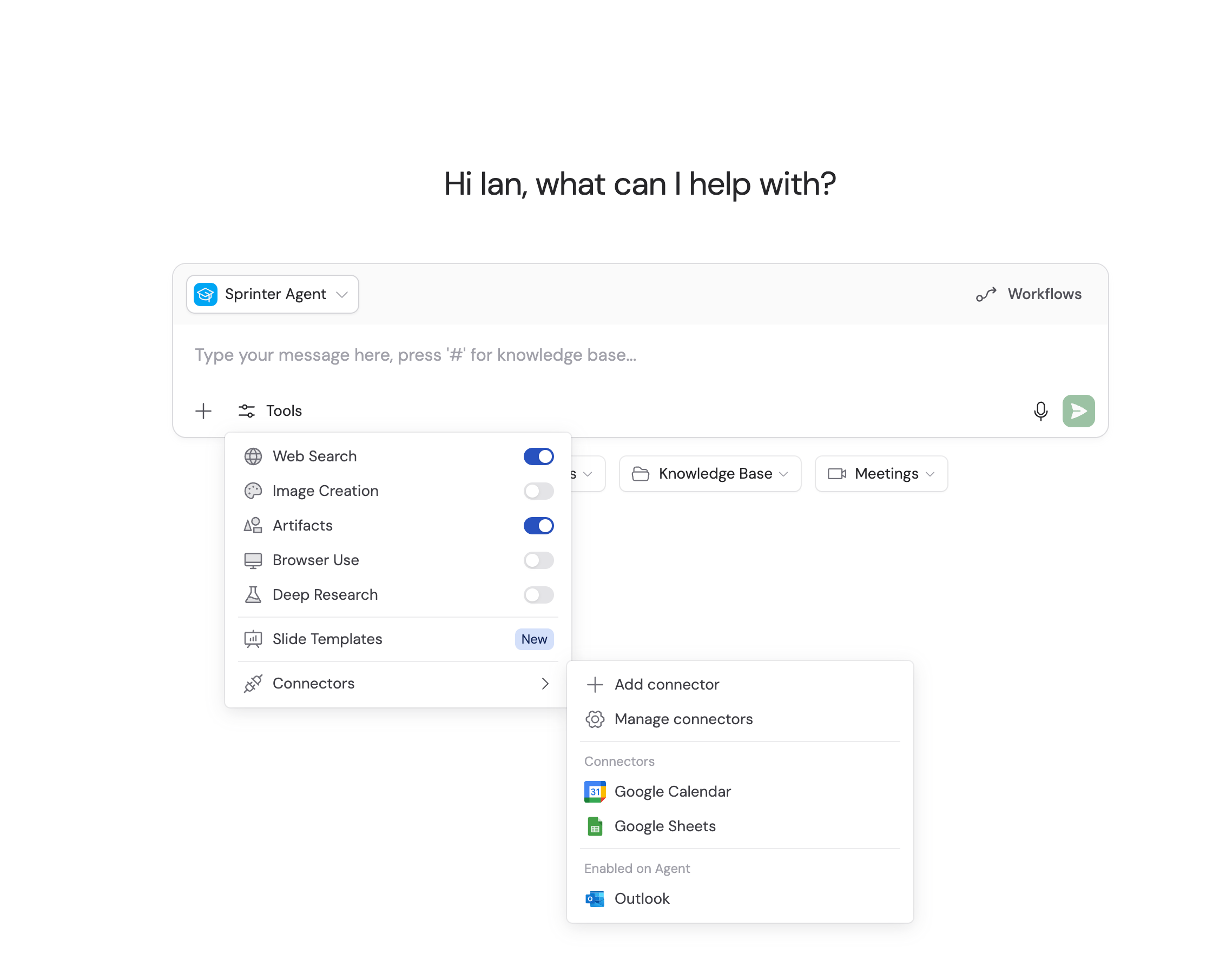
Use voice mode
Voice mode lets you have a spoken conversation with your Agent instead of typing. Click the microphone icon in the text box to start speaking. The Agent transcribes your speech, processes it, and responds — both in text and, optionally, with audio playback.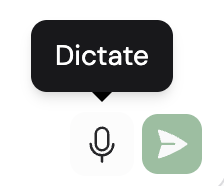
Use the writing editor
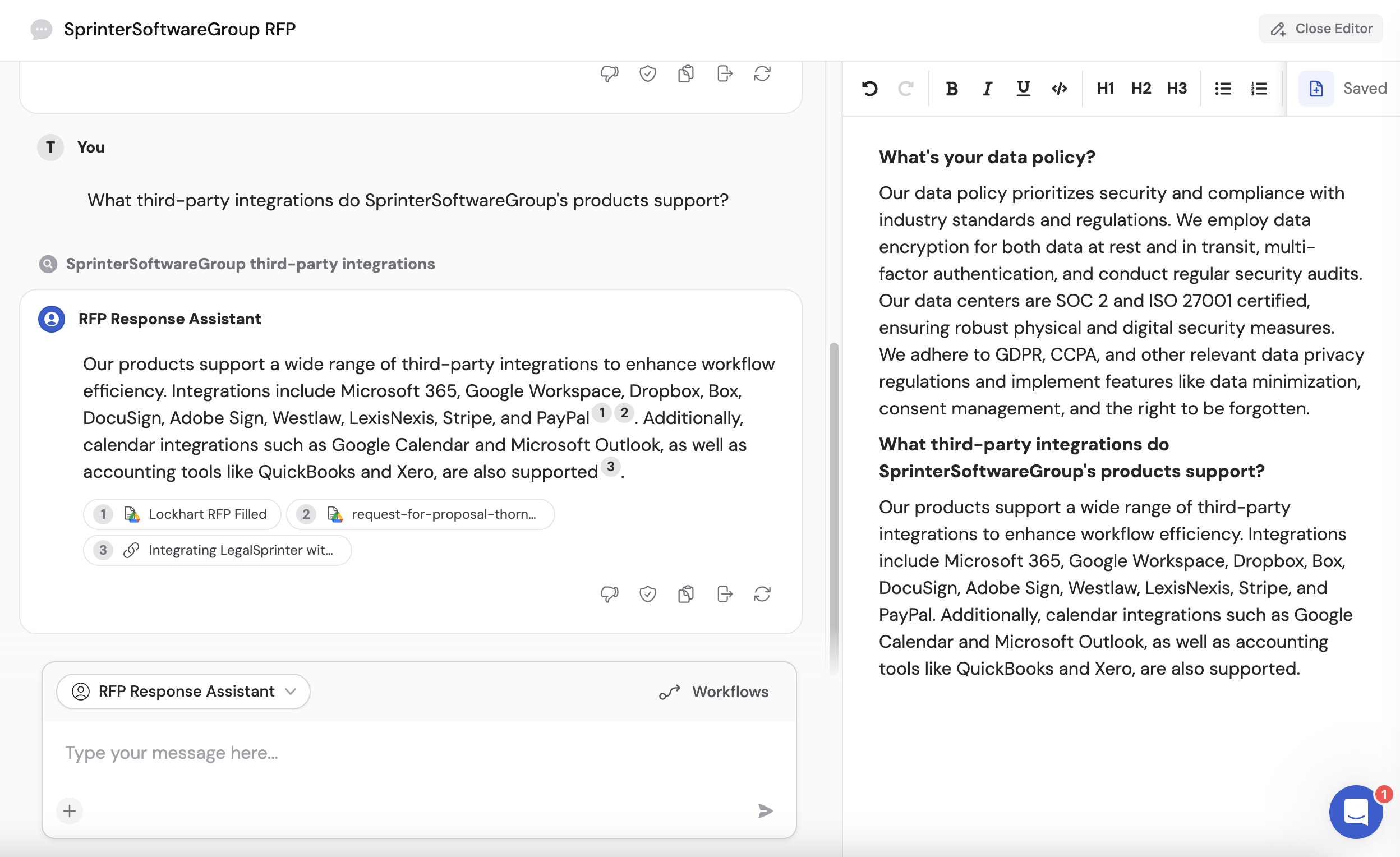
The writing editor is a side-by-side panel where you can draft and refine content while chatting with an Agent.Open the editor

Write alongside your chat
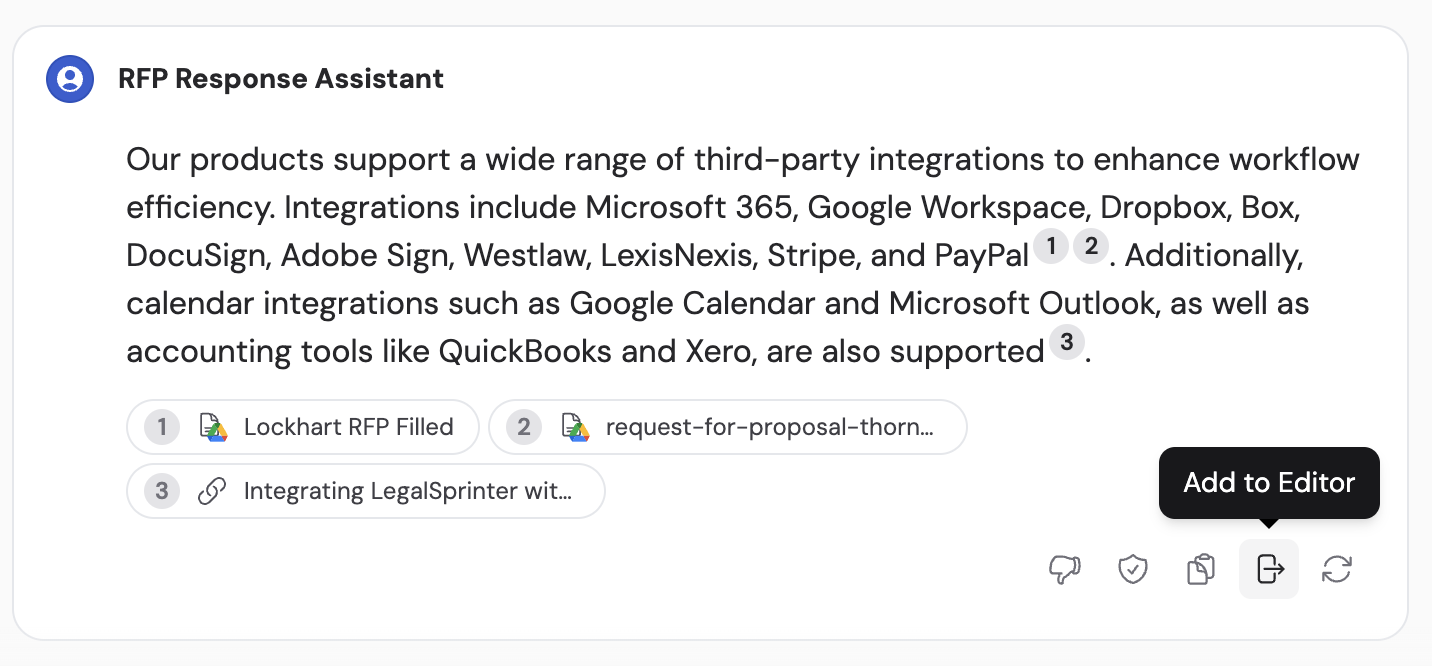
Add Agent responses to the editor
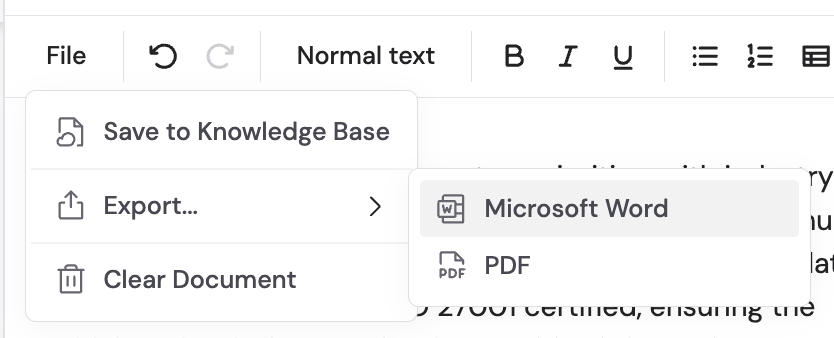
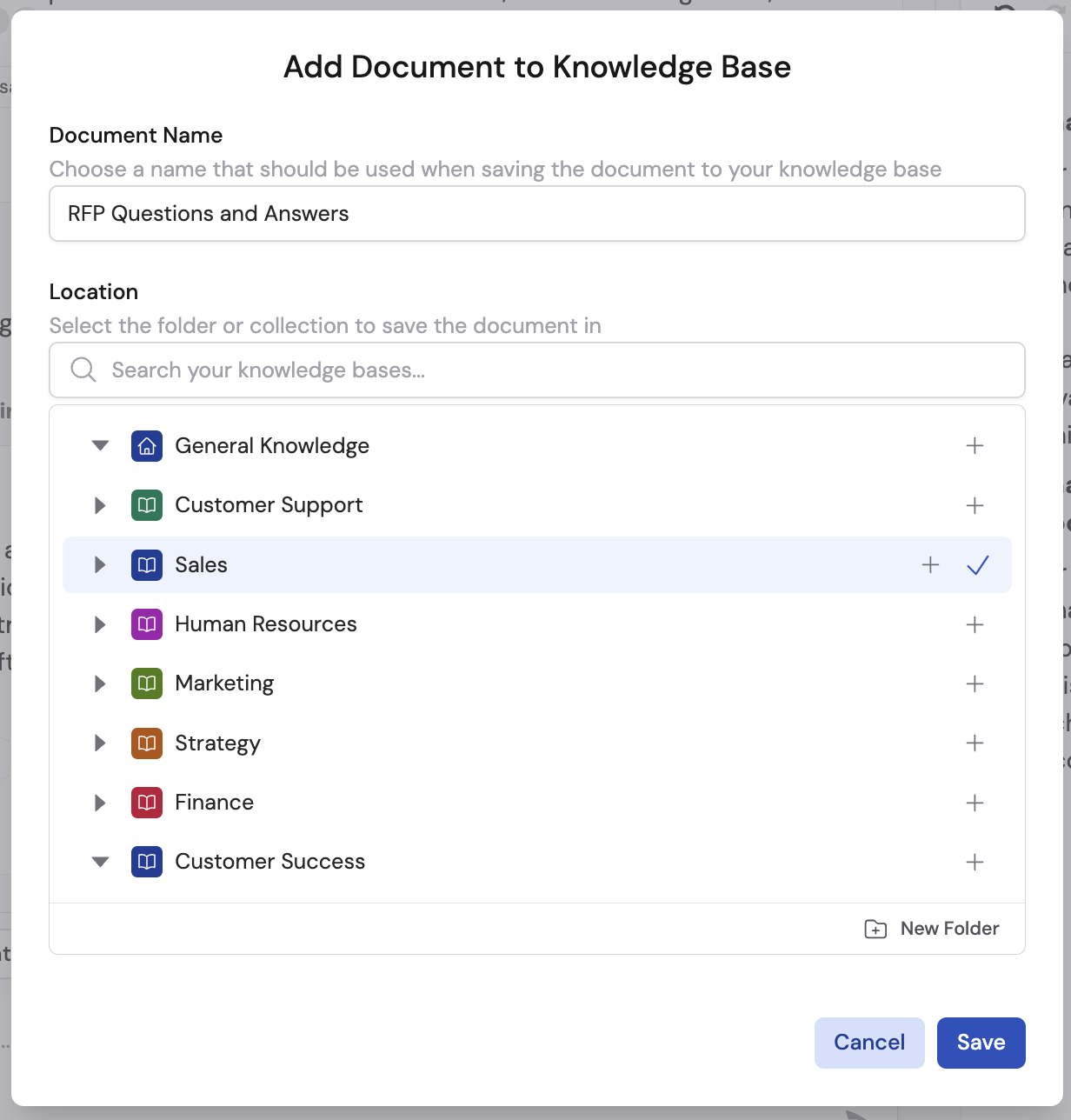
Save to your Knowledge Base
Run a Workflow in chat
You can execute Workflows directly within a chat conversation to automate tasks without leaving the interface.Open the Workflow menu
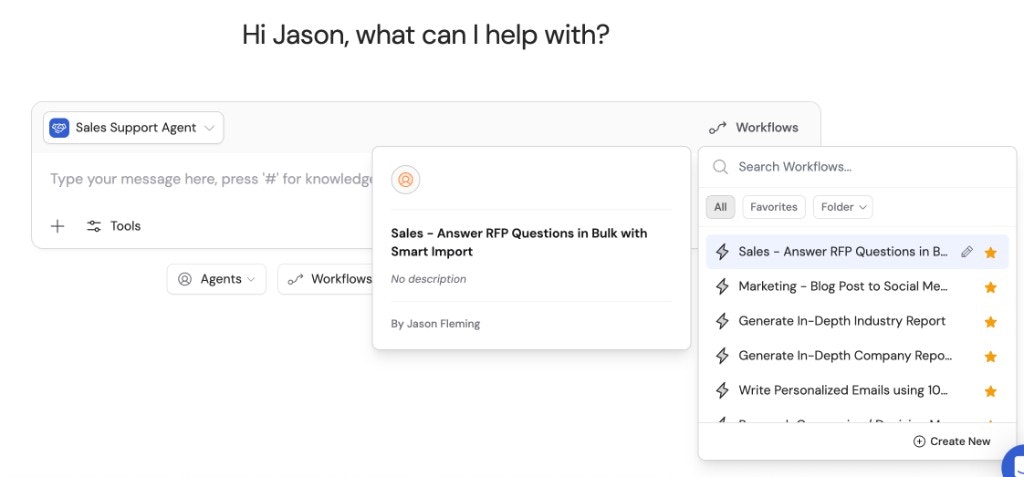
Select a Workflow
Fill out the form
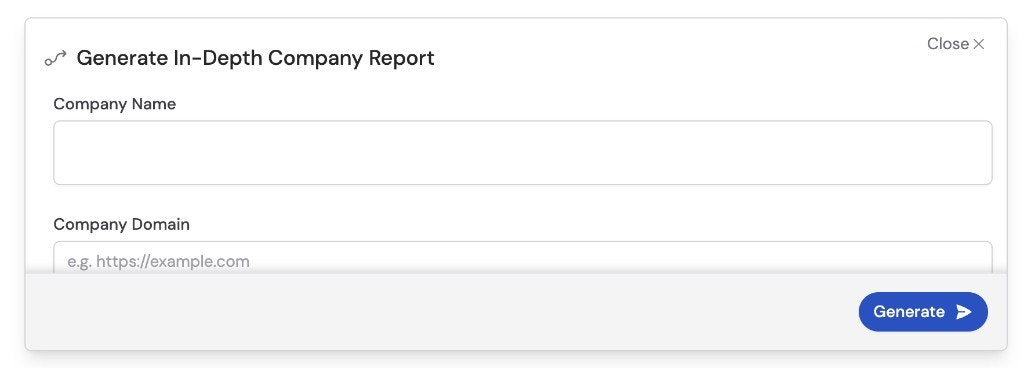
Generate and review results
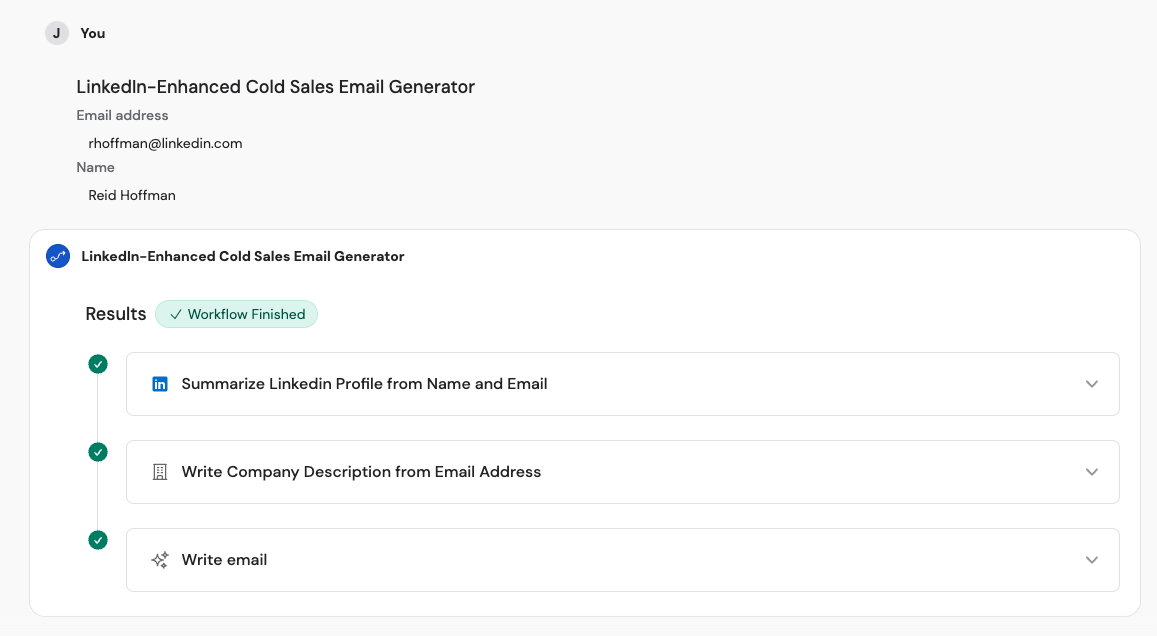
Continue the conversation
Use a Skill
Skills give Agents reusable procedures, files, and tools for specialized tasks. Installed Skills are available across your chats, while Agent-attached Skills are available whenever you use that Agent. Agents choose relevant Skills automatically based on each Skill’s name and description. To select one yourself:Open the slash menu
Select a Skill
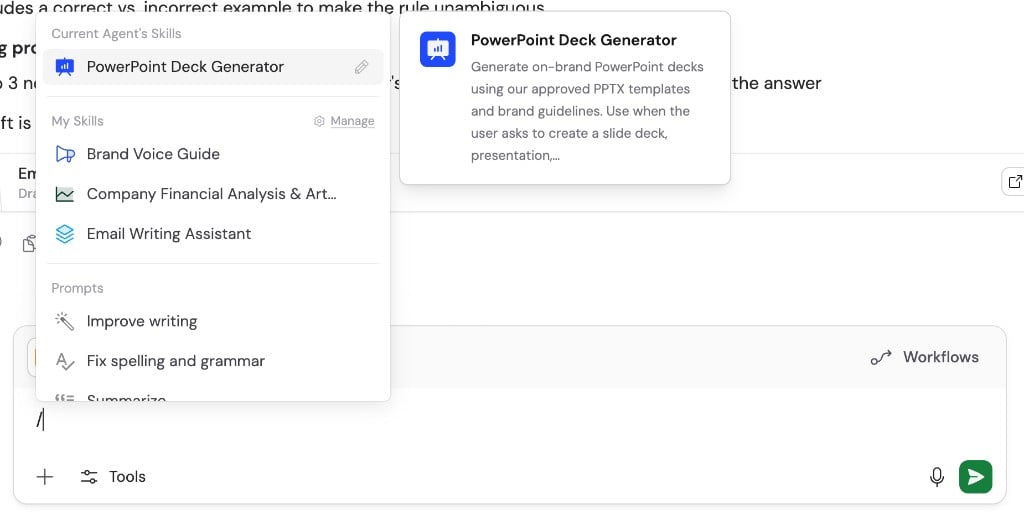
Describe the task
Use the prompt library
The prompt library lets you create reusable prompt templates so you can quickly apply consistent instructions across chats.Manage your prompts
Open the prompt library
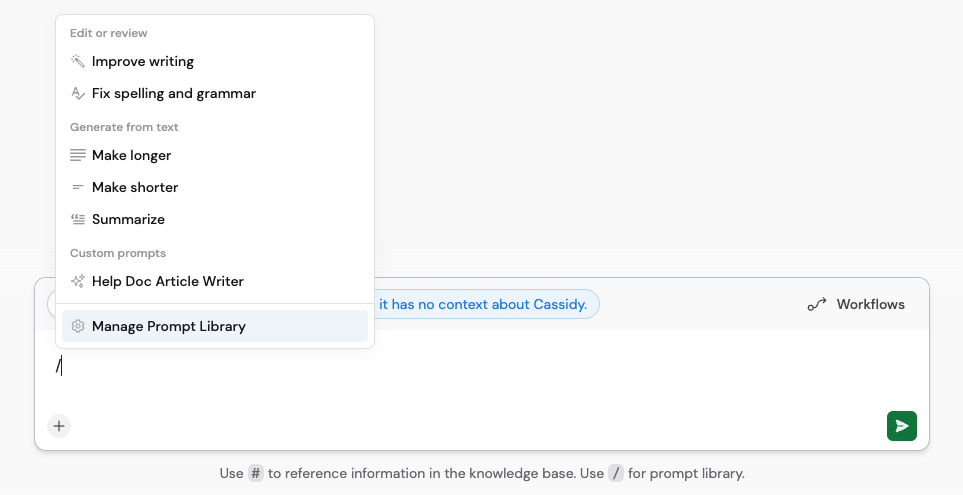
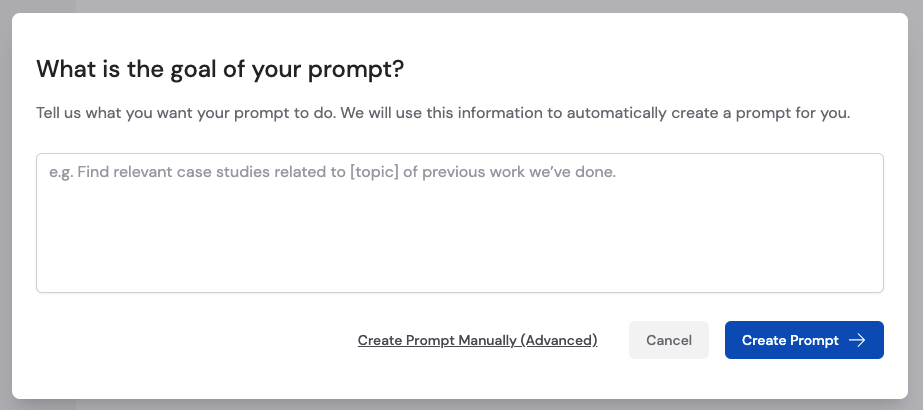
Create a new prompt
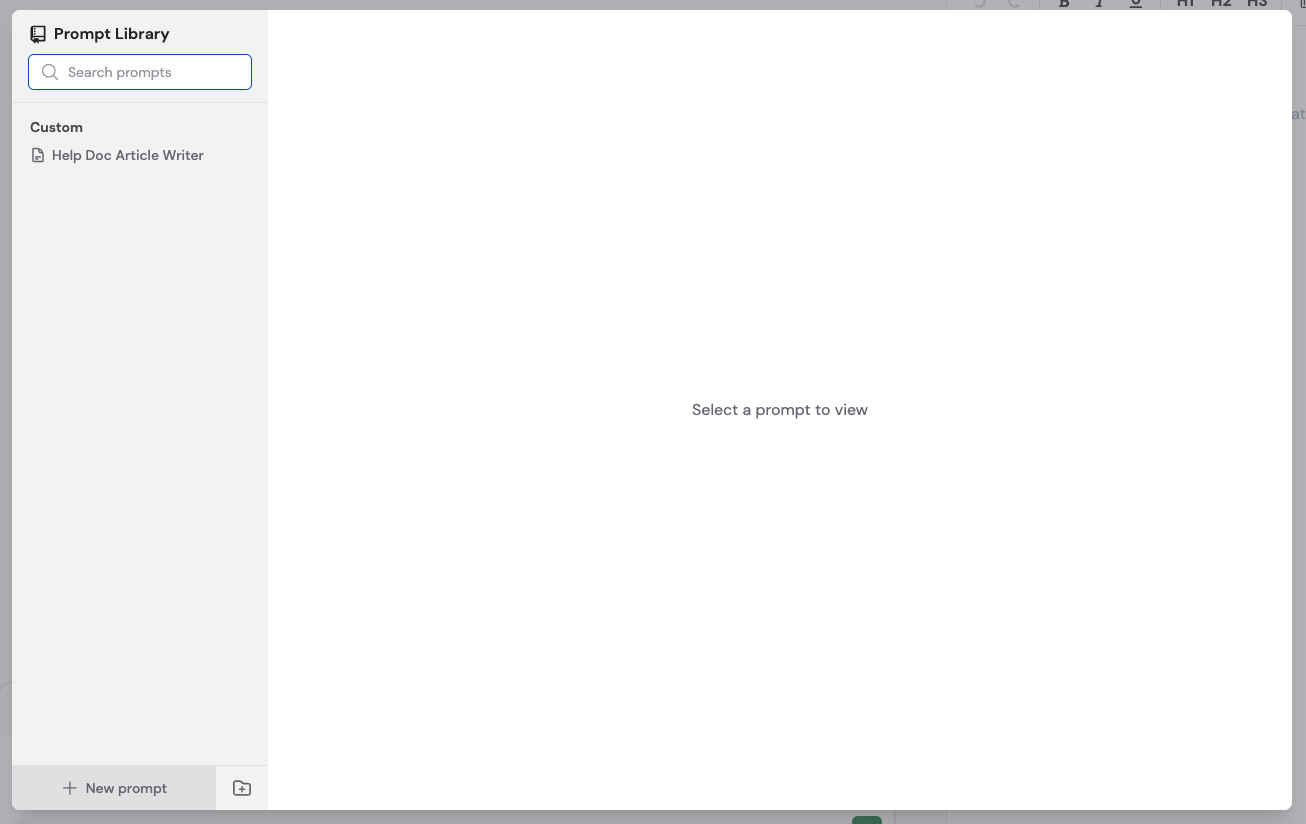
- Use [brackets] for placeholders that change each time (e.g., [professional] or [witty] for tone)
- Type # to reference Knowledge Base items
- Add example outputs so the Agent matches your preferred style
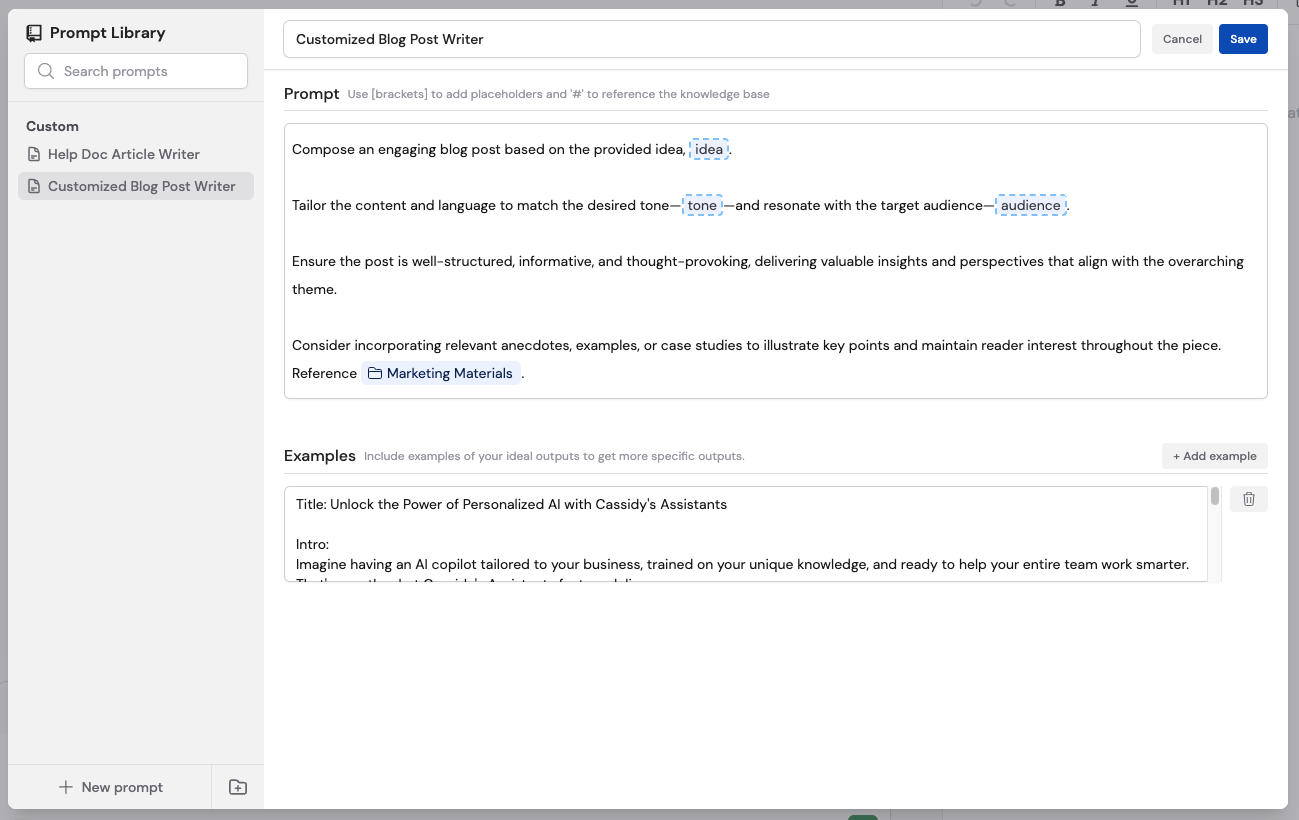
Save and use

Apply a prompt in chat
Type / to open the prompt menu
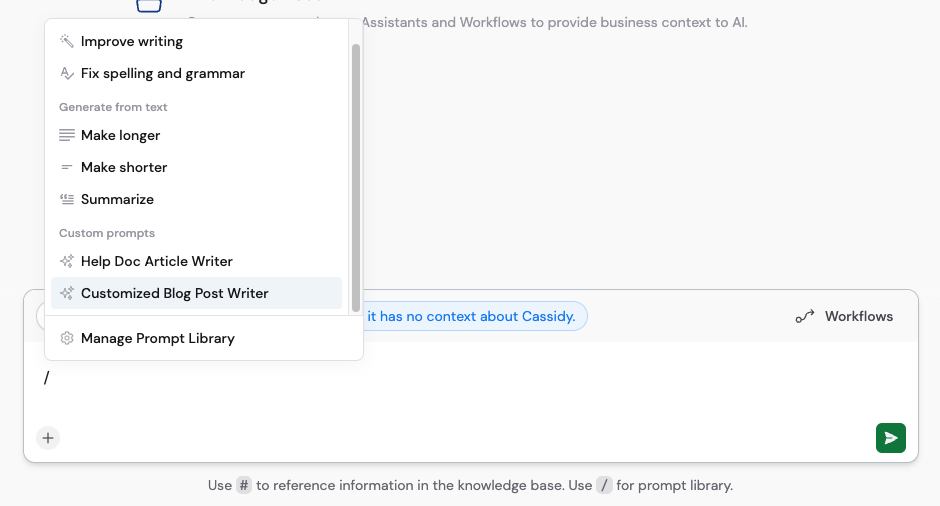
Insert and customize
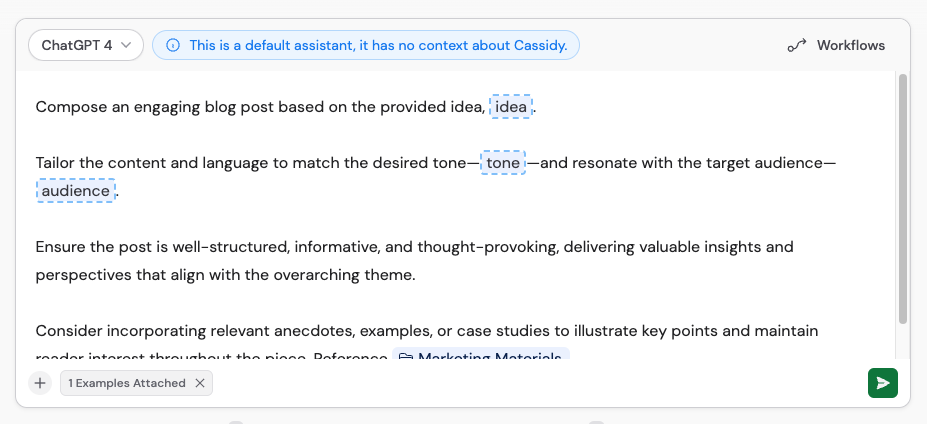
Send and get results
Analyze data
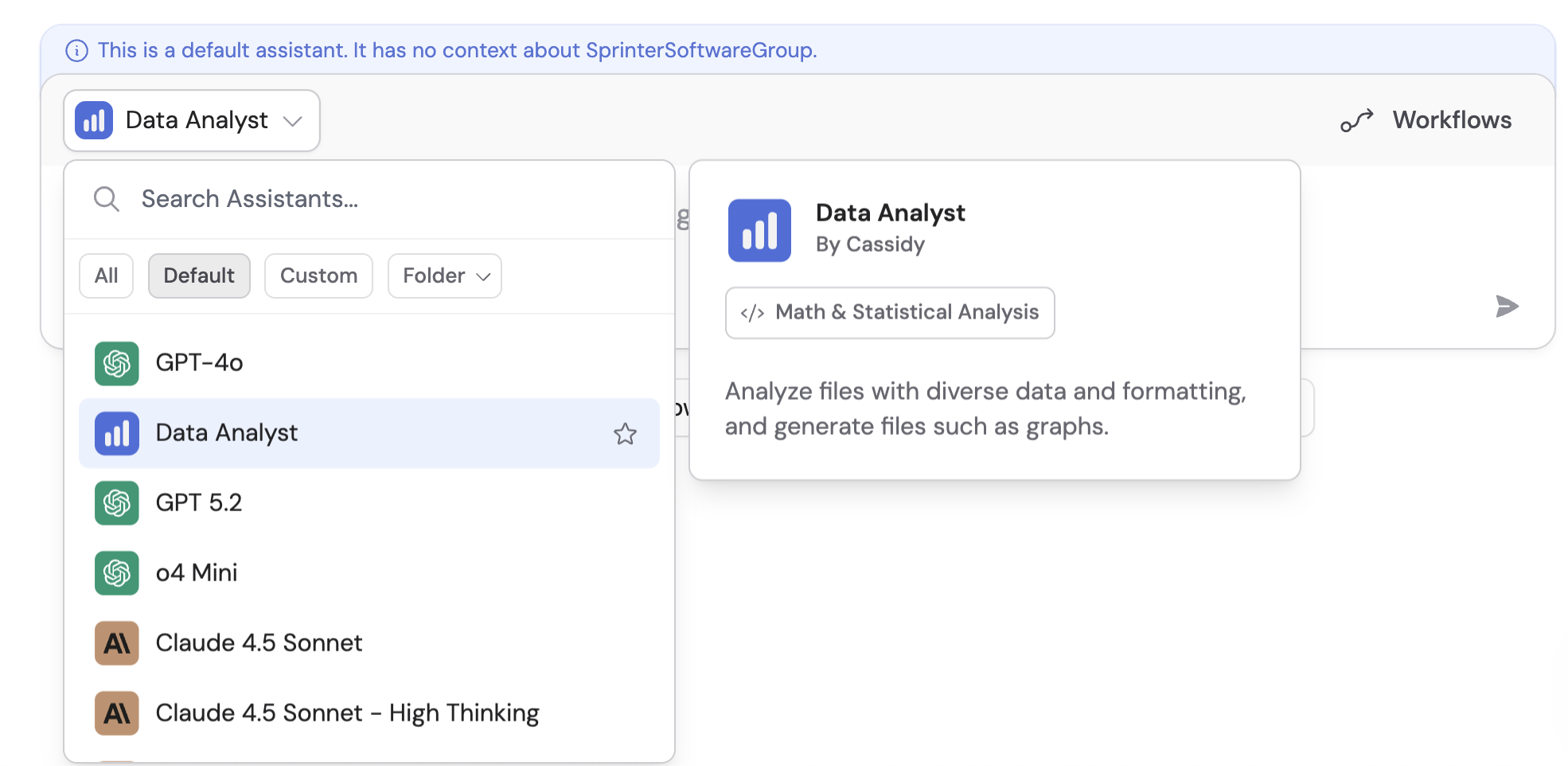
Upload spreadsheets or data files and let the Agent create charts, run calculations, and extract insights.Select a data-capable Agent
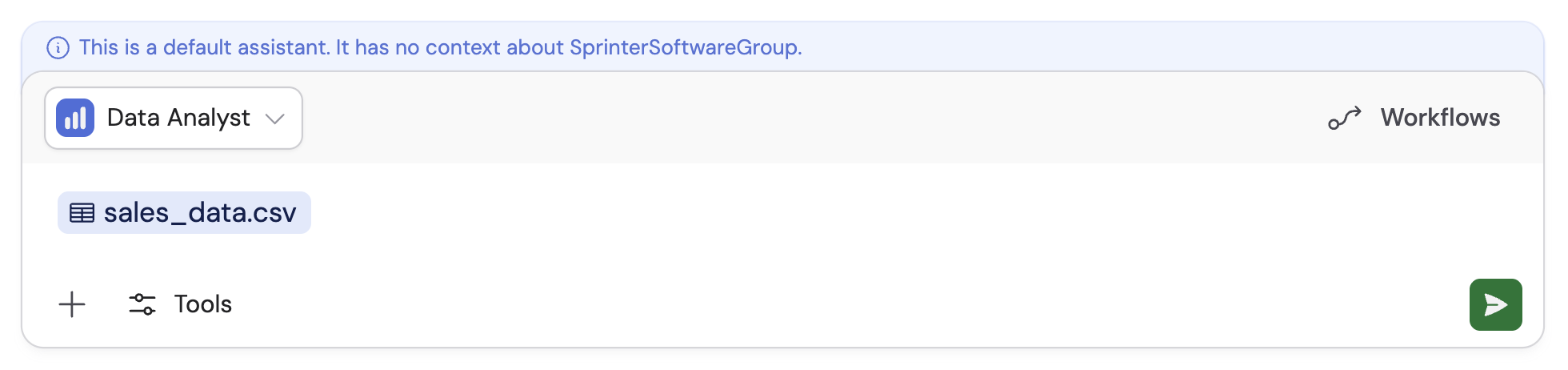
Upload your data
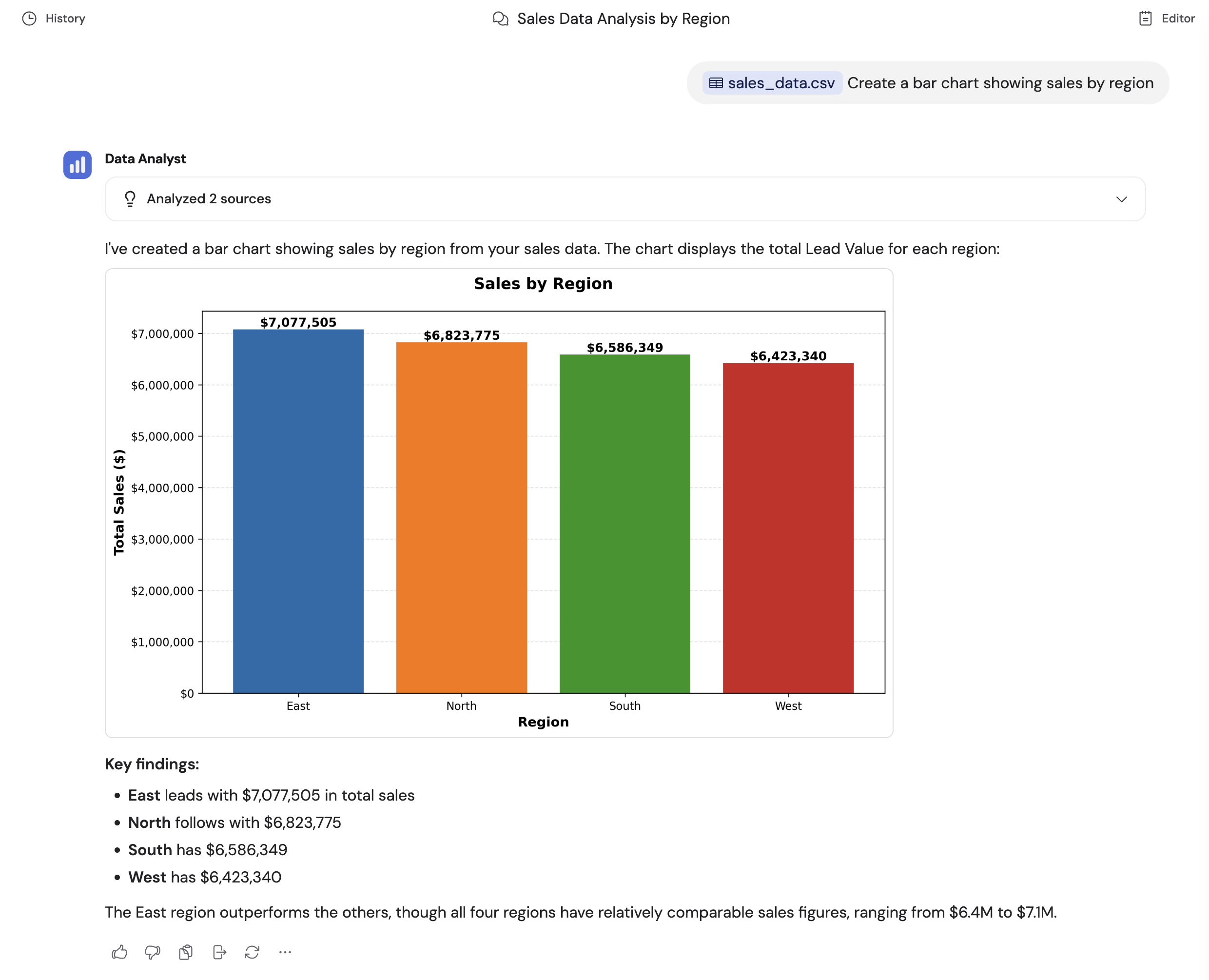
Ask questions and request visualizations
- “Create a bar chart showing sales by region”
- “What are the key trends in customer behavior?”
- “What was the total revenue for Q1?”
View the code behind the analysis
</>) next to any step to see the Python code the Agent used to process your data.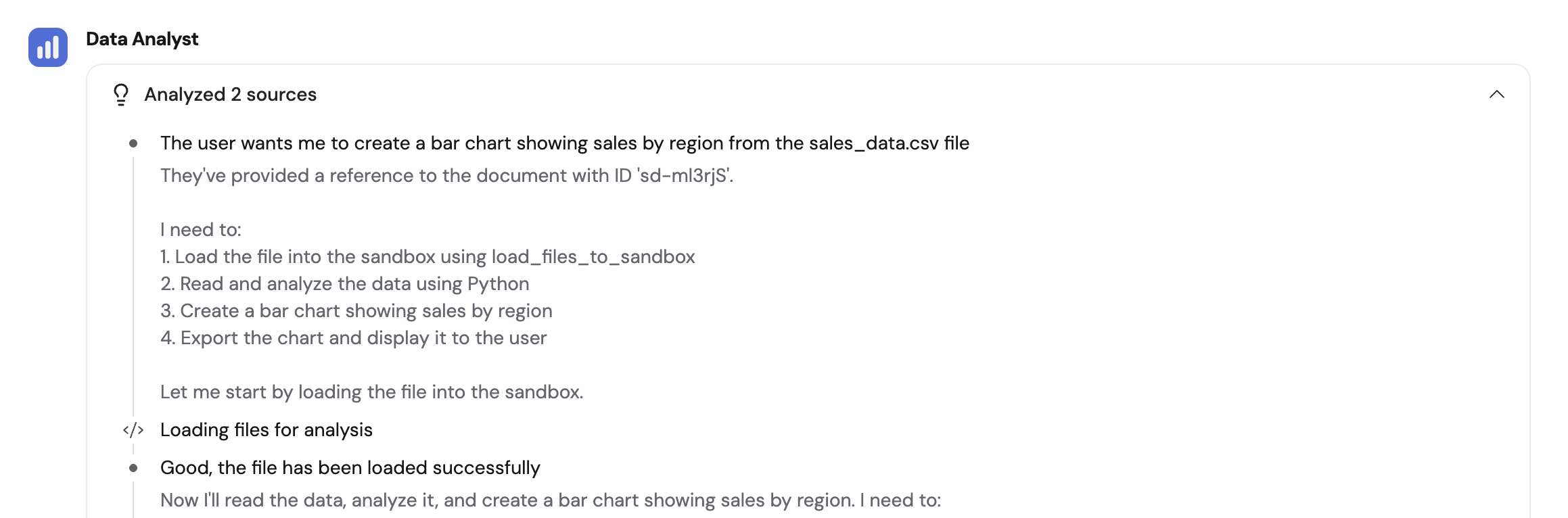
How to format your data for best results
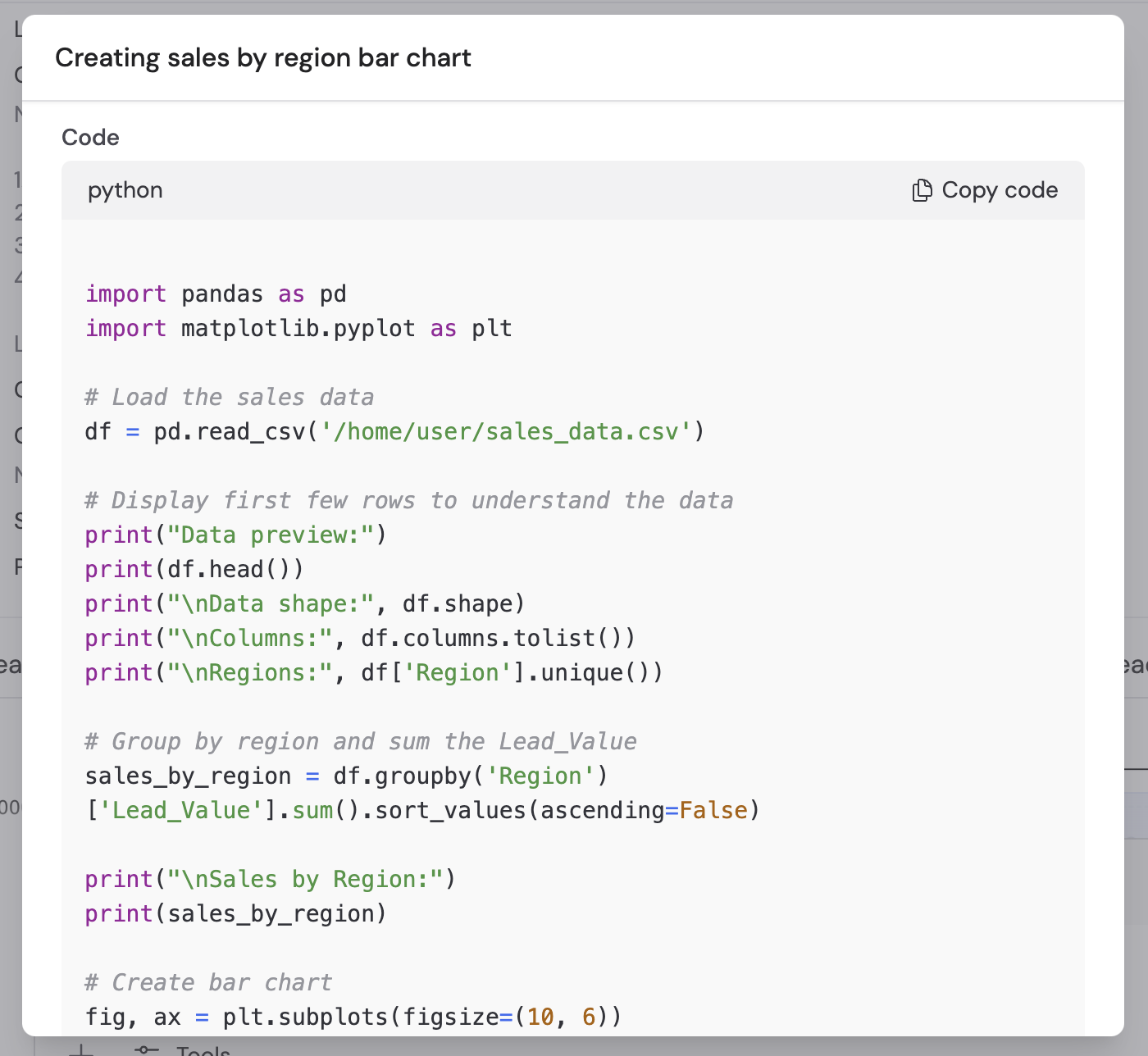
How to format your data for best results
- Use CSV or Excel format — these are the only supported file types for data analysis
- Organize data in rows and columns — each row is a record, each column is a variable
- Include descriptive column headers in the first row — avoid blank rows above the headers
- Keep data consistent — no empty rows between entries, no multiple tables in one file, avoid multiple worksheets
Beyond traditional data analysis
Beyond traditional data analysis
- Manipulate branded templates — fill out forms, convert reports to presentations, edit Word documents and PDFs
- Create synthetic data — generate sample datasets for testing or demonstrations
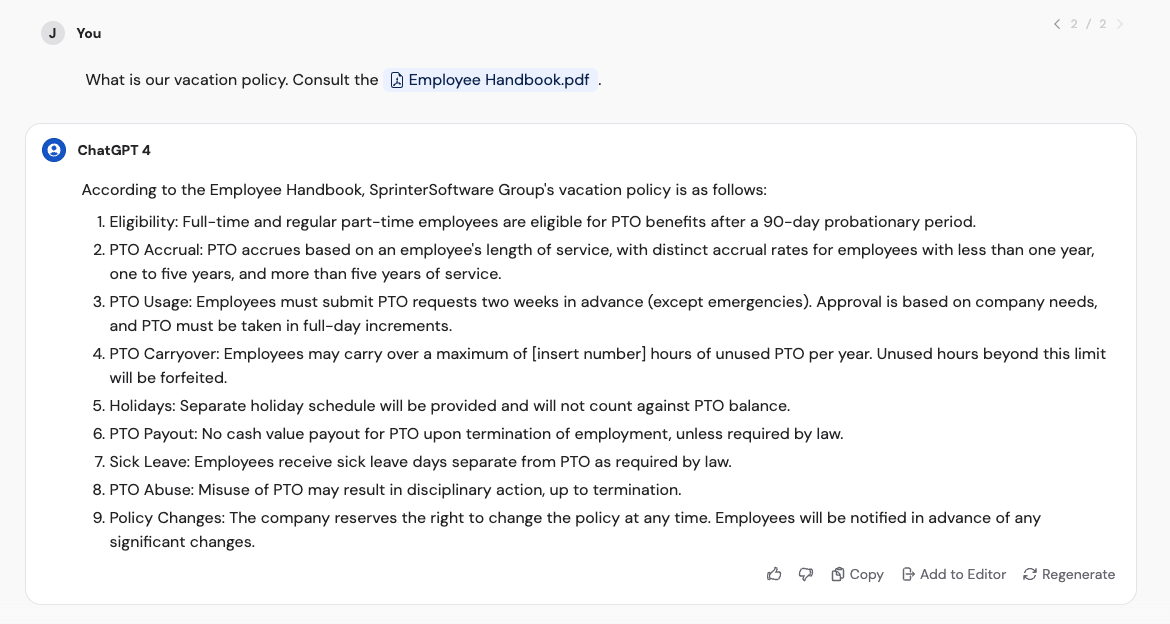
Edit and regenerate messages
You can modify a sent message and have the Agent generate a new response.Hover over your message
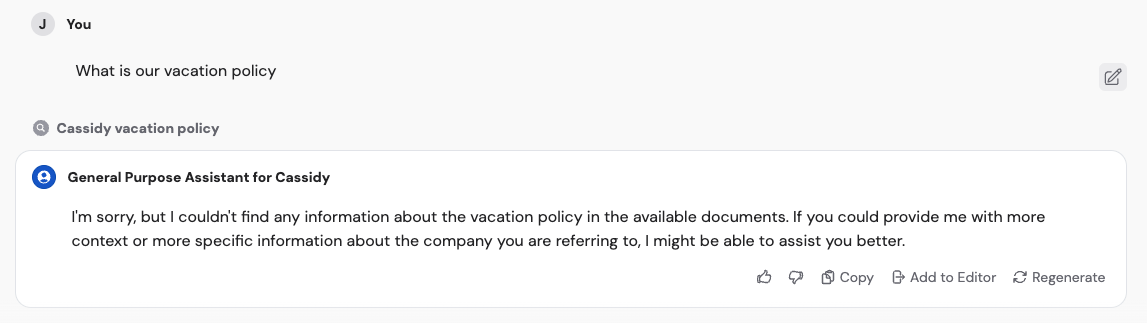
Edit and re-send

Browse response versions
Branch a conversation
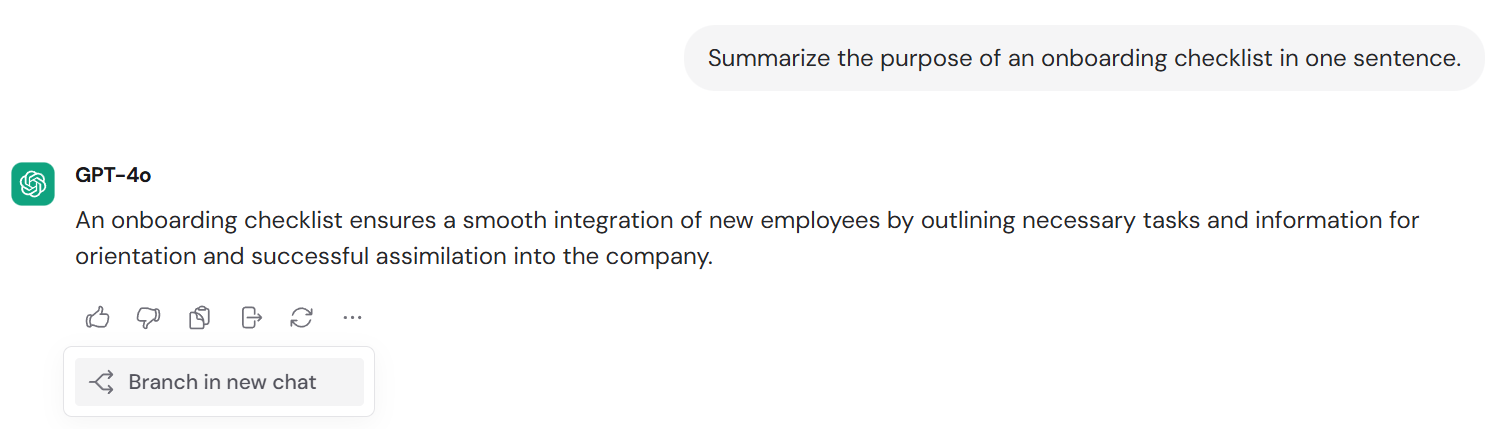
Branching creates a copy of a conversation up to a specific message, so you can explore a different direction without losing the original thread.Find the branching point
Branch in a new chat
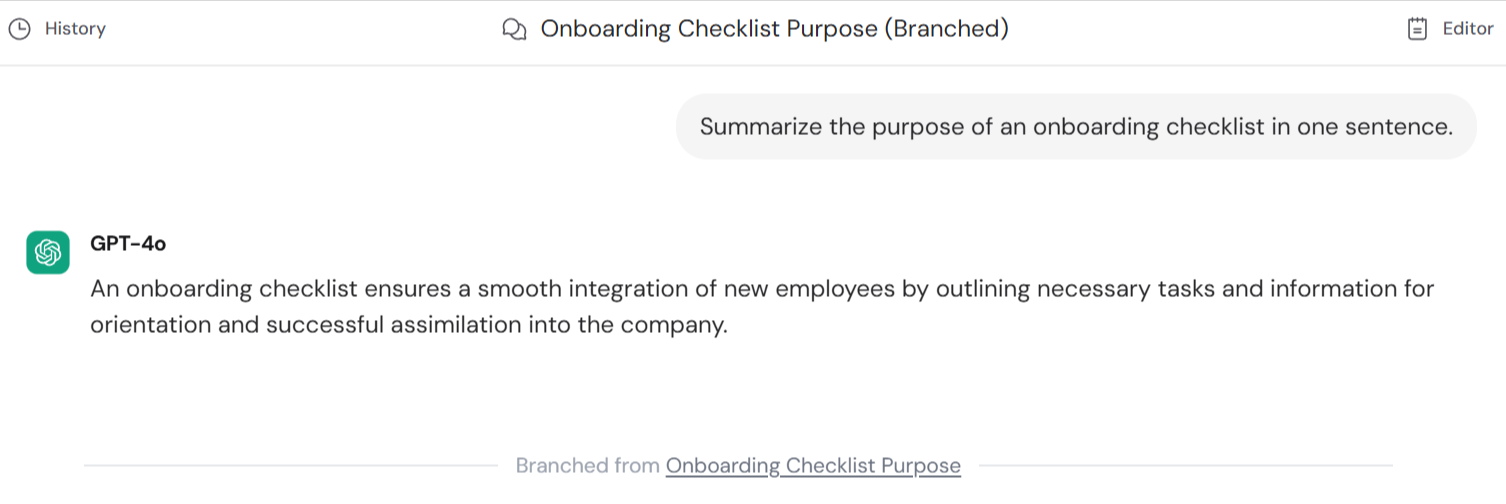
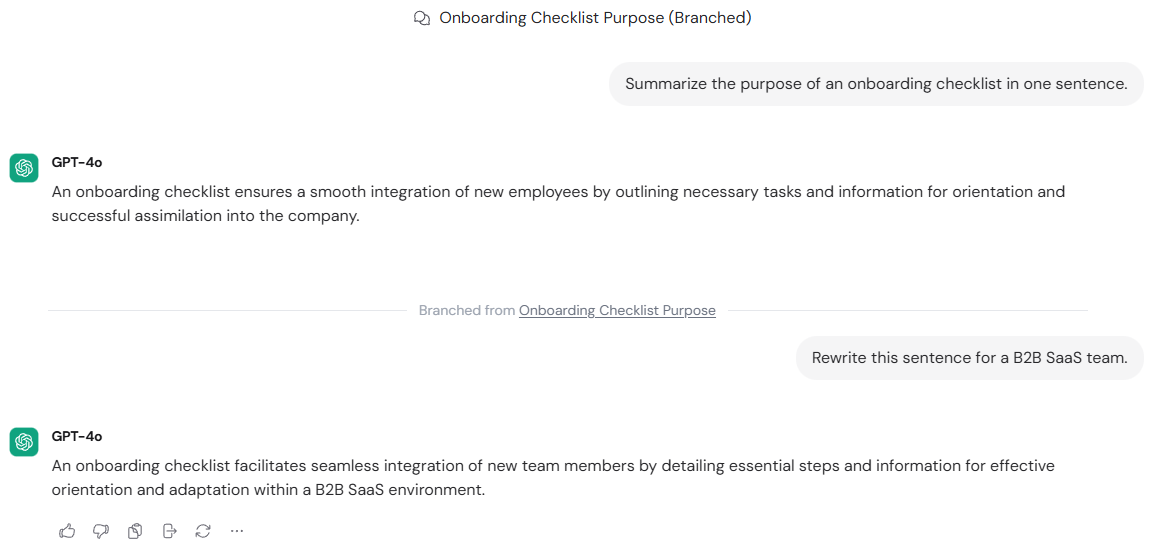
Continue in the new chat
Share and organize chats
Chats use the same sharing model as Agents and Workflows — you can share with specific teammates, groups, or your whole organization, and set each person’s access to View (read-only) or Edit (can send messages).Share a chat
Open the … menu on any chat and select Share, or click the Share button in the chat header. Choose who can access it and set their permission level. Sharing a chat does not notify the recipient — you’ll need to send them the link directly.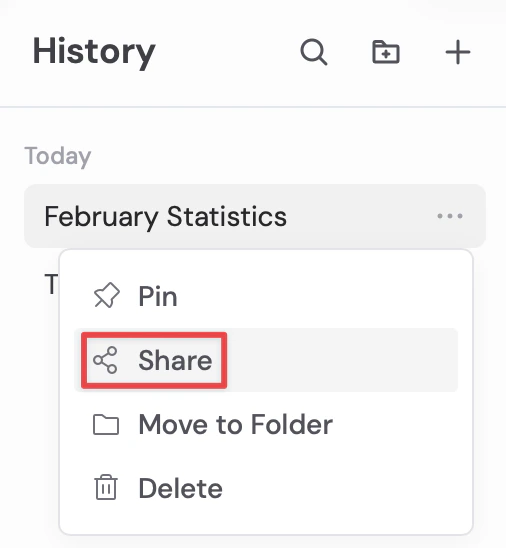
Organize chats with projects
Projects keep related chats together, like everything for a customer account, hiring process, or quarterly planning. Chats in a project share the project’s instructions, memory, and access. Open a chat’s … menu and select Move to project to add it to one.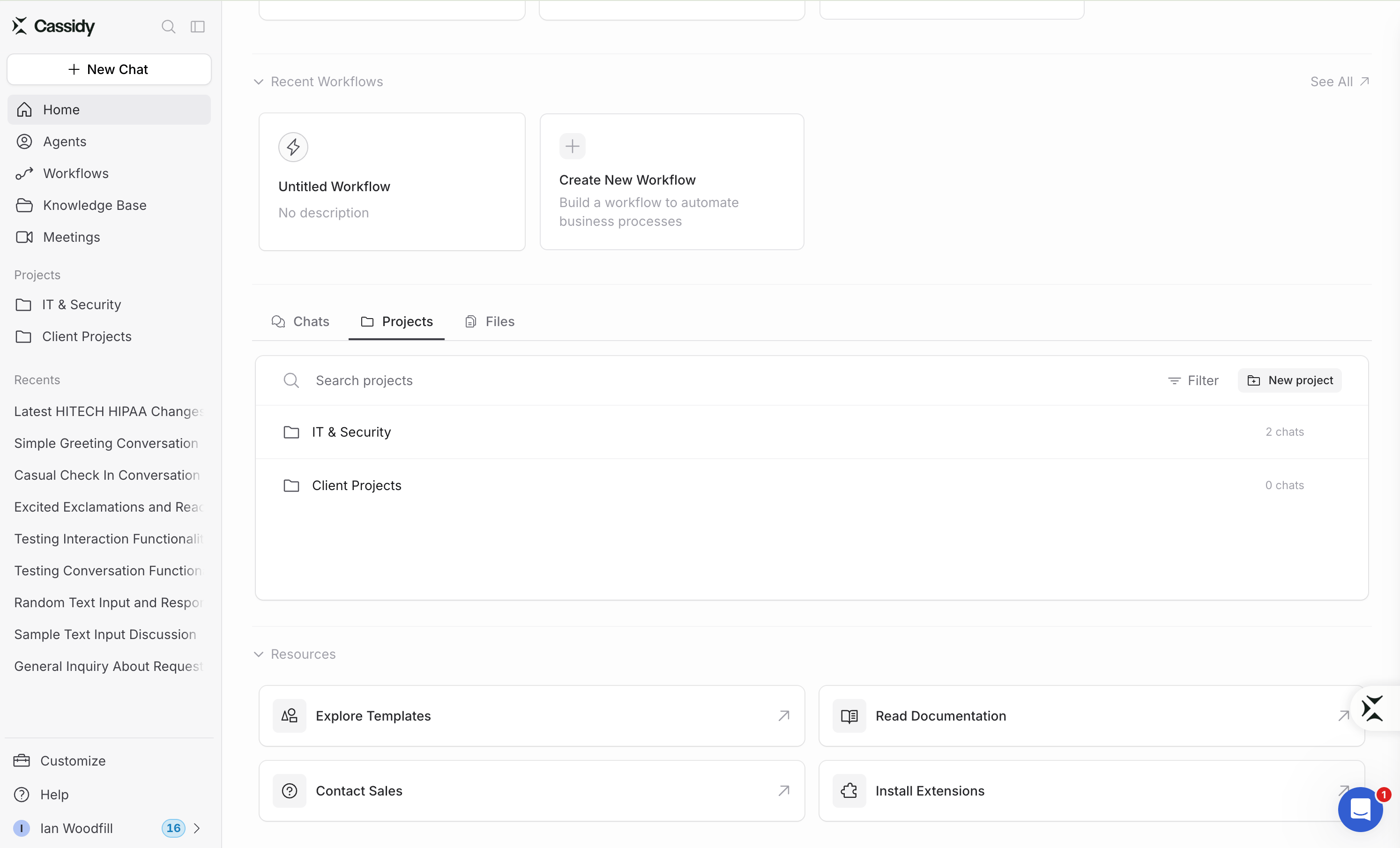
- Chats inside a project use the project’s sharing settings and cannot be shared individually
- New messages added to a shared chat are visible to everyone with access in real time
Use Cassidy in multiple languages
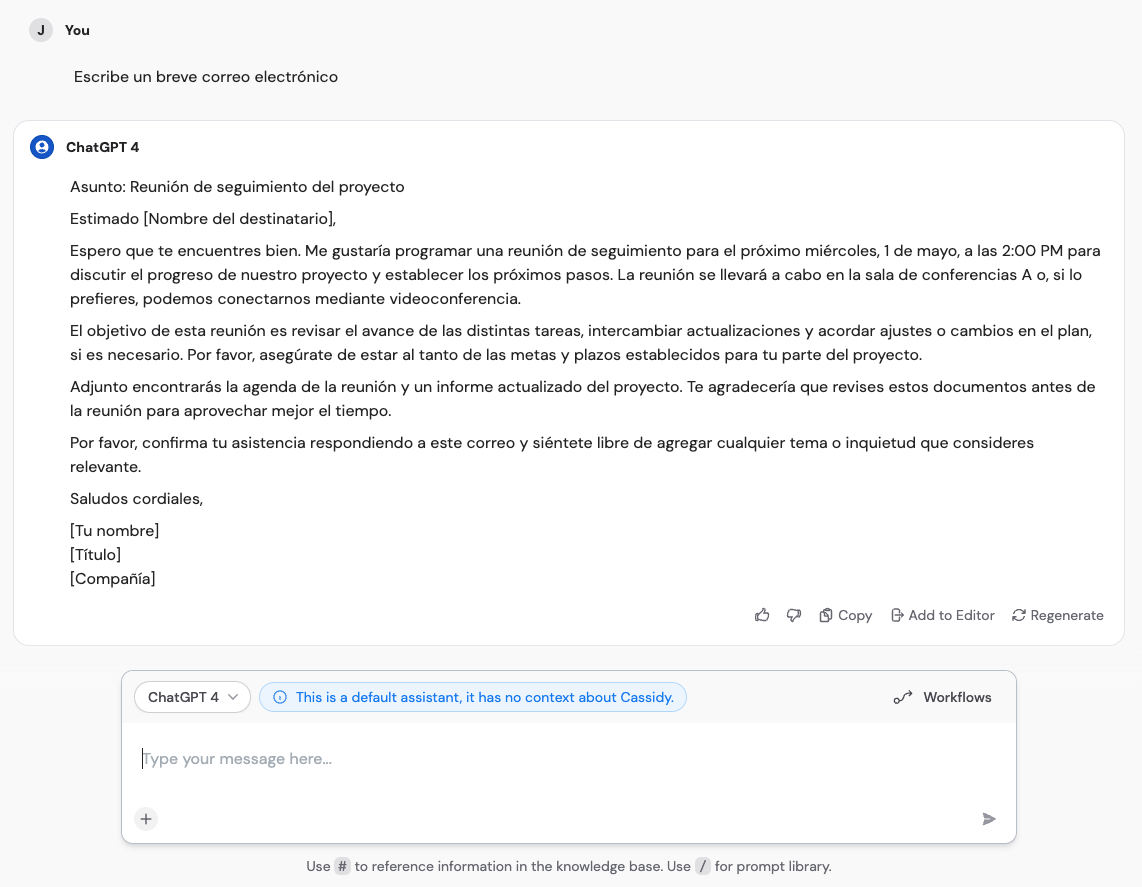
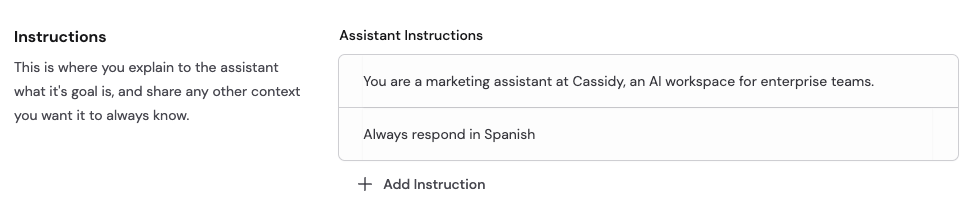
While the Cassidy interface is in English, the AI models can understand and respond in virtually any language. Type your message in the language you prefer, and the Agent responds in the same language.